Text
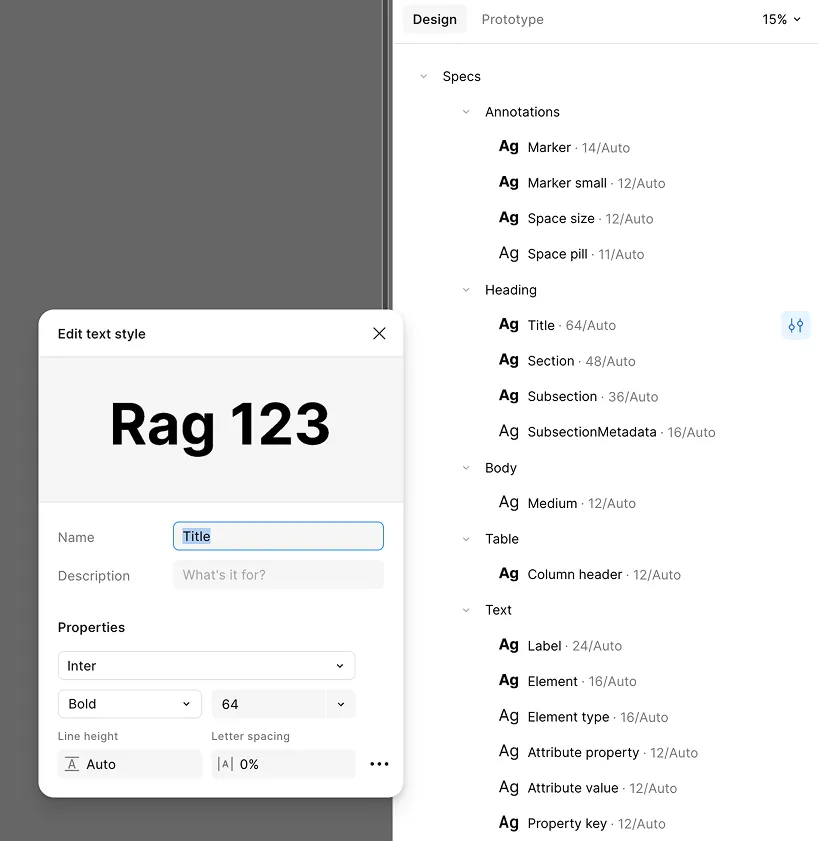
By default, every piece of text in a generated spec — headings, labels, attribute values — uses hardcoded font settings. Turning on Text creates a set of local text styles named Specs/... (e.g. Specs/Heading/Title) and applies them instead, so a team can restyle a spec’s typeface, weight, or size in one place instead of regenerating it.
How It Works
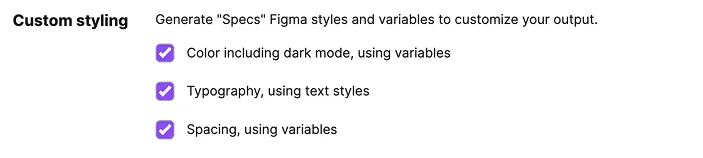
Open the plugin’s Settings tab and check “Typography, using text styles” under Custom Styling, then generate as usual.
What It Includes
- Local text styles — creates or reuses text styles named
Specs/<category>/<name>(e.g.Specs/Heading/Title,Specs/Text/Element) - One style per text role — headings, section titles, table headers, attribute labels, and values each get their own named style
- Full coverage — every piece of text across all output sections binds to one of these styles instead of a hardcoded font setting
Editing a generated style’s font — for example changing Specs/Heading/Title from Inter to a team’s primary typeface — updates every heading in every spec that references that style, without regenerating anything.